
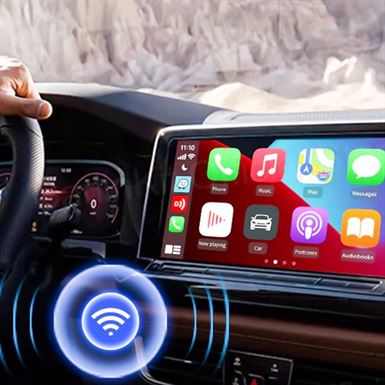
Fix Apple CarPlay operation issues and enjoy an uninterrupted driving experience.
Discover how to resolve Apple CarPlay issues for a seamless driving experience. Apple CarPlay allows drivers to easily access their favorite apps, messages, and music while staying focused on the road. However, you may occasionally encounter problems with CarPlay, which can be frustrating and disrupt your driving experience.
In this article, we will provide helpful tips to troubleshoot common Apple CarPlay issues. We’ll explain how to check your iPhone settings, reset CarPlay, fix USB connection problems, and more. You’ll also learn how to update your car’s software to optimize compatibility with CarPlay.
By following our simple tips, you can quickly resolve Apple CarPlay issues and enjoy all its features without interruption. Don’t let technical problems ruin your driving experience; learn how to fix Apple CarPlay issues now and regain control of your drive.
Common Apple CarPlay Issues
Frequent problems with Apple CarPlay Apple CarPlay is generally reliable, but there may be situations where you encounter issues. Here are some common problems you might face with Apple CarPlay:
Troubleshooting Steps for Apple CarPlay Issues

Another common difficulty with Apple CarPlay involves USB connection issues. If your iPhone isn’t recognized by CarPlay when you plug it into your car, try the following steps:
– Check that the USB cable you’re using is in good condition and working properly.
– Try plugging your iPhone into another USB port in your car.
– If possible, test with another USB cable to see if the problem persists.
Updating Your iPhone and CarPlay Software
If you’re experiencing issues with Apple CarPlay, here are some troubleshooting steps you can follow to resolve the problems:
Checking CarPlay Settings
It’s important to check the CarPlay settings on your iPhone and in your car to ensure they’re properly configured. Here’s how to do it:
– On your iPhone, go to “Settings” > “General” > “CarPlay” to check compatible cars and enabled apps.
– In your car’s settings, look for options related to CarPlay and make sure they’re set up correctly.
Restarting the iPhone and Car Infotainment System
Restarting your iPhone and your car’s infotainment system can often resolve CarPlay issues. Here’s how to proceed:
– On your iPhone, hold the power button until the “Slide to Power Off” slider appears. Slide to turn off your iPhone, then turn it back on.
– Turn off your car, wait a few minutes, then restart it.
Resetting Your CarPlay Connection
If the previous steps haven’t resolved the issue, you can try resetting the CarPlay connection between your iPhone and your car. Here’s how to do it:
– On your iPhone, go to “Settings” > “General” > “CarPlay” and select your car from the list of available cars.
– Tap “Forget This Car” to remove the existing CarPlay connection.
– Restart your iPhone and try connecting your iPhone to your car again.
Checking the USB Cable and Connection
A faulty cable or poor USB connection can cause issues with Apple CarPlay. Here’s what you can do:
– Check that the USB cable you’re using is in good condition and working properly. Try using another cable if possible.
– Make sure the USB port in your car is clean and undamaged.
– Plug your iPhone into another USB port in your car to see if that resolves the issue.
Contacting Apple Support for Help
If none of the previous tips resolve your Apple CarPlay issue, it may be necessary to contact Apple Support for additional assistance. They can guide you through the troubleshooting process and provide solutions specific to your situation.
Conclusion and Final Tips for a Seamless Apple CarPlay Experience
By following the troubleshooting steps mentioned above, you should be able to resolve most common Apple CarPlay issues. However, here are some additional tips for a seamless experience:
– Keep your iPhone and CarPlay software updated by installing the latest updates.
– Use a high-quality USB cable to avoid connection problems.
– Avoid using resource-intensive apps while using CarPlay.
– If you experience recurring issues with CarPlay, consider consulting a professional for additional assistance.
Don’t let technical problems prevent you from fully enjoying Apple CarPlay. Follow our troubleshooting tips and enjoy an uninterrupted driving experience with all CarPlay features at your fingertips.
Troubleshoot Apple CarPlay operation issues and enjoy an uninterrupted driving experience.
Discover how to resolve Apple CarPlay issues and enjoy a seamless driving experience. Apple CarPlay is an innovative technology that allows drivers to easily access their favorite apps, messages, and music while staying focused on the road. However, you may occasionally encounter problems with CarPlay, which can be frustrating and affect your driving experience.
In this article, we’ll provide helpful tips to troubleshoot common Apple CarPlay issues. We’ll explain how to check your iPhone settings, reset CarPlay, fix USB connection problems, and more. You’ll also learn how to update your car’s software to optimize compatibility with CarPlay.
By following our simple tips, you can quickly resolve Apple CarPlay issues and enjoy all its features without interruption. Don’t let technical problems ruin your driving experience; learn how to fix Apple CarPlay issues now and regain control of your drive.