
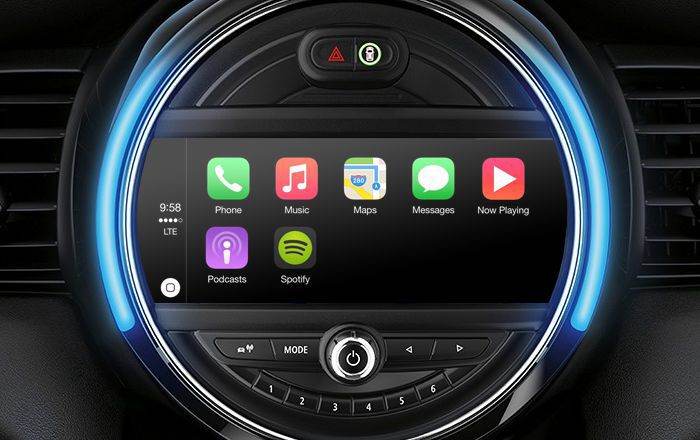
Apple CarPlay is a convenient platform that allows you to access your iOS apps hands-free while driving, by establishing a connection between your iPhone and your car’s infotainment screen. And your experiences will only be truly great when everything works properly. But what if your Apple CarPlay doesn’t connect? Don’t worry! In today’s topic, we will explain how to fix Apple CarPlay when it’s not working effectively:
How does Apple CarPlay work?
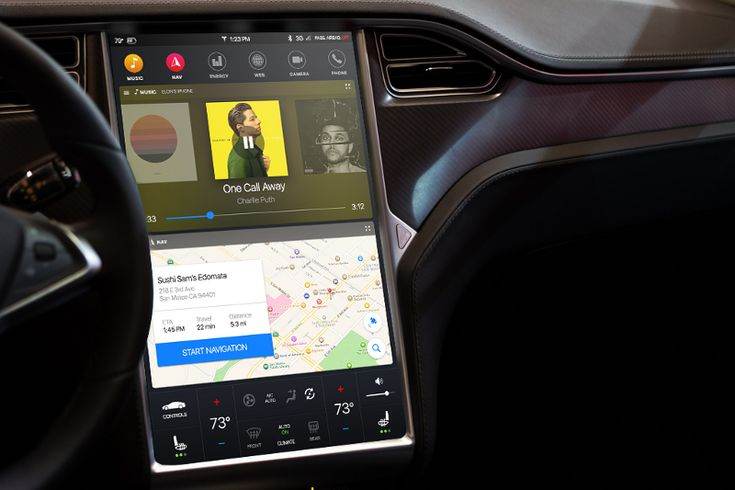
Nowadays, besides basic driving needs and comfort, we also need cars equipped with high-tech and entertainment equipment for long, boring trips.
Understanding this, Apple launched a smart application called Apple CarPlay, which allows connecting the iPhone to the car. Car manufacturers are increasingly offering this application by default on new version vehicles.
Simply put, when cars connect to Apple CarPlay, the infotainment screens can perform many operations and functions similar to those of iPhones. The driver can receive calls, texts, check maps, listen to music, etc. Conversely, you can also control the car’s screen from the phone you are connected to.
Besides the iPhone’s default functions, Apple CarPlay allows the use of a number of compatible third-party applications such as iHeartRadio, Spotify, WhatsApp, Amazon Music, etc. Apple CarPlay also supports access to a number of applications developed by its rival Google: Google Play Music and Google Maps are both accessible through the software.
Notably, Apple CarPlay also supports the virtual assistant Siri, making it easier than ever to automatically control your car’s screen. This feature will be extremely convenient for you when your hands and feet are busy driving on the road.
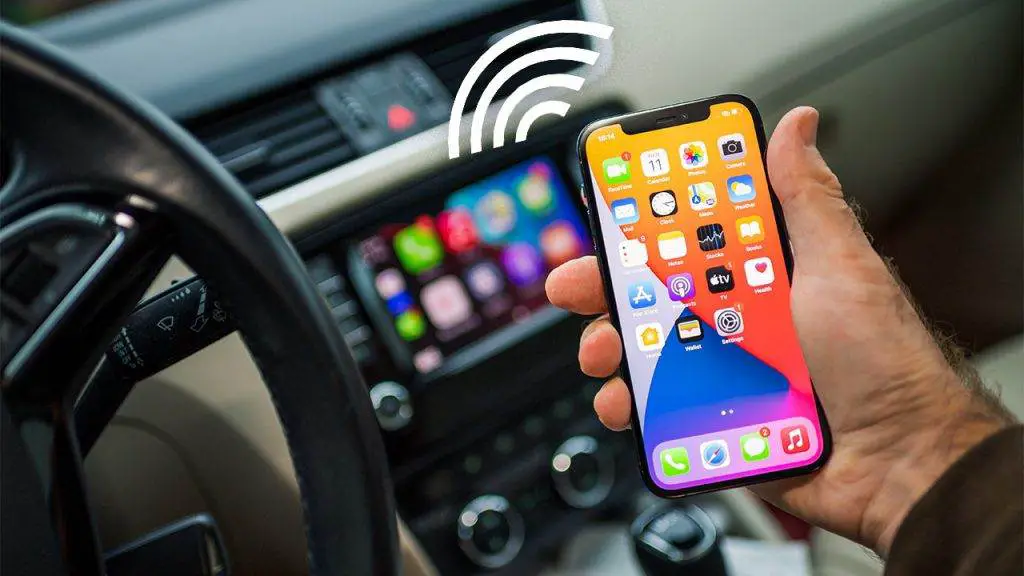
Depending on your car, you can connect your iPhone to CarPlay using a USB port or pair your iPhone with your car’s Bluetooth if your car supports wireless connectivity.
Why is my Apple CarPlay not working?
There can be several reasons why Apple CarPlay fails to connect, stops working, or doesn’t work properly. Typical causes include:
iOS Updates
If your iOS software is outdated, it can lead to compatibility issues. Make sure to check and update your infotainment system software and the iPhone’s software promptly to ensure stable operation.
Compatibility Issue
Make sure your iPhone is compatible with CarPlay and that the infotainment system supports Apple CarPlay. Nowadays, more and more car models worldwide are compatible with Apple CarPlay. Volvo, Honda, Chevrolet, BMW, Ford, and Porsche are among the dozens of brands offering CarPlay compatibility. You can ask a technician for advice or check the car purchase website to see if your car supports Apple CarPlay!
Other Reasons
- The USB cable is faulty
- Bluetooth connection problem
- Integration issues between applications
How to fix Apple CarPlay when it’s not working?
You can follow a few methods below to get your Apple CarPlay working again:
Note: Before starting the process, make sure CarPlay is compatible with your vehicle and available in your region. Otherwise, you will not be able to establish a connection or access any features.
Preliminary Inspection
Before trying any of the methods, here are a few points to check:
- Make sure your iPhone has the latest iOS version and supports CarPlay (iPhone 5 or later).
- Check if the latest version is installed on your vehicle. Look for software updates on the manufacturer’s website to receive instructions on how to update.
- Unpair the iPhone from your car and try connecting again. This is often helpful if the Bluetooth connection between your phone and your car’s infotainment system is malfunctioning.
- Disconnect any other Bluetooth devices connected to your iPhone that might cause interference or conflicts with the device and the car when using CarPlay.
If you have performed all these checks and Apple CarPlay still isn’t working, try the fixes below to see if CarPlay recovers:
1. Check Connections
If you are using a USB cable, check that the cable is not damaged or loose, or try another cable with a different USB port if you have one. If you choose to use a wireless connection, enable Bluetooth and WiFi in your iPhone’s settings.
2. Restart Your iPhone and Your Car’s Infotainment System
If CarPlay doesn’t work after trying different connections, check if the CarPlay logo appears on your car’s screen. If not, restart your iPhone and your car’s infotainment system.
To restart your car’s infotainment system, consult your vehicle’s owner’s manual. After restarting the device, try using CarPlay with your iPhone again to see if the issue is resolved.
3. Make Sure Siri is Enabled
If your car supports Siri Eyes Free, you can press and hold the voice command on the steering wheel to make your request. However, if Siri is disabled, you won’t be able to use it with CarPlay.
Step 1: To enable Siri, you choose: Settings -> Siri & Search
Step 2: Enable the following options: Allow Siri When Locked, Listen for “Hey Siri”, and Press Side Button for Siri or Press Home for Siri.
4. Disable USB Restricted Mode
USB Restricted Mode is an iOS feature that protects iOS user data from hackers using USB accessories to hack your passwords via the Lightning port. This feature will disable the internal USB data connection after a certain period of time.
Step 1: To disable this feature, open Settings on your iPhone and tap on Face ID & Passcode or Touch ID & Passcode.
Step 2: Enter your password if prompted and go to the Allow Access When Locked section.
Step 3: Then, tap on USB Accessories and turn on the switch to disable USB Restricted Mode.
Note: Once this feature is disabled, Lightning-based phone accessories can work even when your iPhone is locked. However, disabling USB Restricted Mode exposes your iPhone to certain threats. But if that’s acceptable to you, you can disable it when using CarPlay and enable it when you don’t need it.
5. Reset All Settings
Sometimes, issues with apps on your iPhone can change some system settings, which may prevent CarPlay from working correctly. In this case, resetting all system settings to default will put everything back in order.
- To reset all settings on your iPhone, open Settings > General > Reset
- Tap Reset All Settings, follow the prompt to complete the process, and check if CarPlay works correctly again.
- You can also reset your phone’s network settings, as network-related errors may have interrupted or broken the connection between your iPhone and CarPlay. To erase and reset network settings on your iPhone, open Settings > General > Reset > Reset Network Settings.
Watch more:
We hope these tips and methods help you fix CarPlay when it’s not working. If you encounter other issues, you can contact Apple Support or your vehicle manufacturer for advice on problems related to car infotainment systems.